

Let’s create your first automation rule in just a few minutes. This example will instantly complete orders for virtual products, giving you immediate value and demonstrating how Order Daemon works.
What we’ll build
Goal: Automatically complete orders containing only virtual/digital products so customers get immediate access to their downloads.
This is one of the most common and immediately valuable automations – it eliminates manual work and improves customer experience.
Step-by-step walkthrough
1. Navigate to the Rule Builder
- In your WordPress admin, go to Order Daemon → All Order Rules
- Click the Add New button at the top of the page
[Image: WordPress admin showing Order Daemon menu with “All Order Rules” highlighted and the Add New button visible on the rules list page]
2. Name your rule
Give your rule a clear, descriptive name like:
- “Auto-Complete Virtual Orders”
- “Complete Digital Products”
- “Instant Virtual Product Completion”
Why this matters: A good name is crucial for identifying which rule executed when you review the audit log later.
3. Configure the automation logic
The Rule Builder uses a simple WHEN / IF / THEN structure:
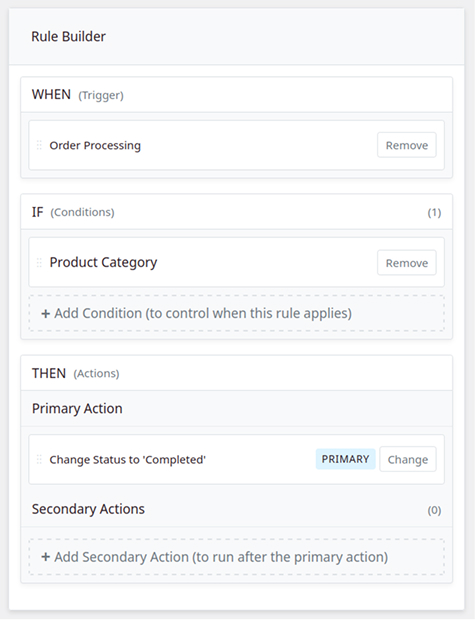
WHEN (Trigger): Set the event that starts your rule
- Select “Order Processing”
- This tells the rule to run immediately after an order is paid for and reaches “Processing” status
IF (Conditions): Add criteria the order must meet
- Click “Add Condition”
- Select “Product Type”
- Set it to check if products “are Virtual”
- This ensures the rule only runs for virtual/downloadable products
THEN (Action): Choose what happens when conditions match
- The “Complete Order” action is automatically selected
- This will change the order status from “Processing” to “Completed”
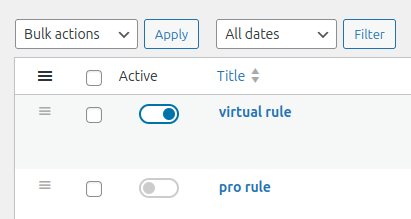
4. Publish your rule
- Click the blue “Publish” button to save and activate your rule
- Your automation is now live and monitoring new orders
[Image: Published rule showing active status indicator and confirmation message that the rule is now monitoring orders]
Test your automation
Place a test order
- Create a test virtual/downloadable product in your store
- Place an order for that product using a test payment method
- Complete the payment process
Verify it worked
- Go to Order Daemon → Insight Dashboard
- Look for a recent entry related to your test order
- You should see an entry showing your rule executed successfully
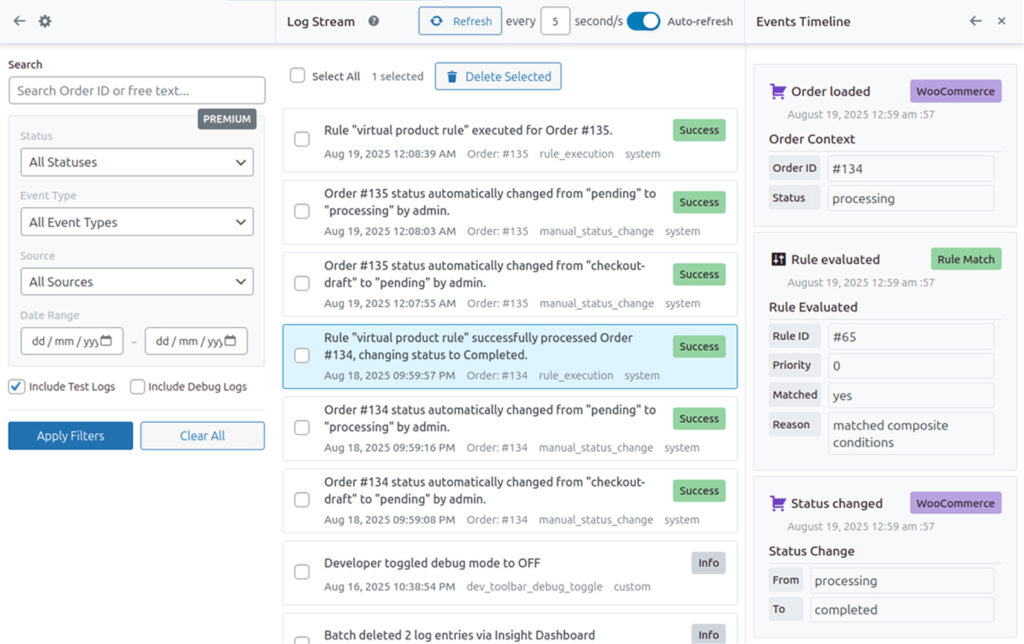
What you should see in the timeline:
- Trigger fired: Payment completed, order status changed to Processing
- Condition evaluated: Product Type = Virtual ✓ (passed)
- Action executed: Order status changed to Completed ✓ (success)
Troubleshooting your first rule
Rule didn’t run?
- Confirm the rule shows as “Published” (not “Draft”)
- Ensure your test order actually contains virtual/downloadable products
- Check that the order reached “Processing” status after payment
- Review the Insight Dashboard for any entries about your test order
Need help reading the timeline?
- See the detailed guide: Audit Log: Reading Timelines and Finding Answers
Want to modify your rule?
- Edit the rule and adjust triggers, conditions, or actions as needed
- See the complete guide: Using the Rule Builder
What you’ve accomplished
🎉 Congratulations! You’ve just:
- Created your first automation rule
- Eliminated manual order completion for digital products
- Set up automatic customer satisfaction improvement
- Learned the core WHEN/IF/THEN rule structure
Your automation will now handle all future virtual product orders automatically, saving you time and ensuring customers get immediate access to their purchases.
Pro tip: Start simple and add complexity gradually. One clear, working rule is better than several complicated ones that conflict with each other.